Registration Instructions
On this page, you will find step-by-step instructions on how to create your online profile, link your Town of Iroquois Falls accounts (property taxes, utility bills) and access your billing details.
Property Taxes
To register and subscribe to electronic tax notices, rate payers must follow these steps:
- On the iCity Online website, select "Register Now".
- To begin the registration process, select Show Me How.
- Select PT-Property Taxes from the drop-down list.
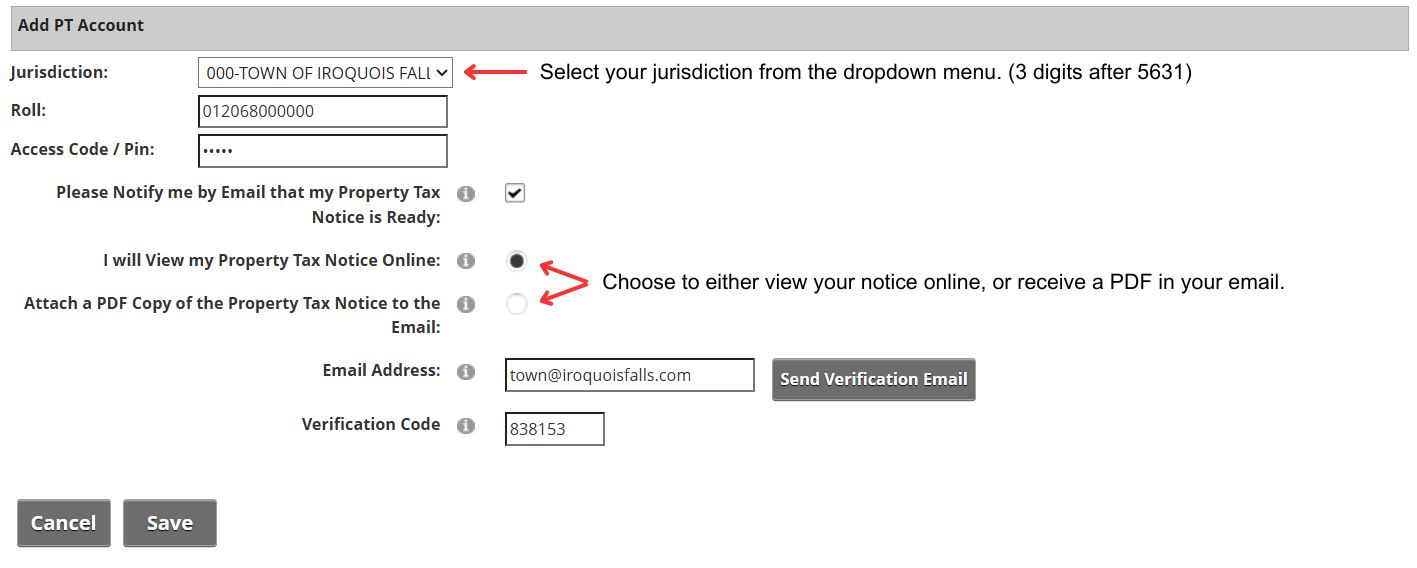
- Referring to your last bill, complete the following fields:
- Jurisdiction: Select your jurisdiction from the dropdown menu. This number is the three digits following 5631 from your roll number (i.e. 010, 020, 030, 040, 050, 060).
- Roll: Enter your roll number as outlined on your Property Tax Bill, excluding the first four (4) digits (5631) and the three digits from your jurisdiction number. Enter the remaining digits in the same format as written on your bill (i.e. 12345678.0000)
- Access Code / PIN: Enter your PIN as shown on the paper copy of your most recent tax notice. If you do not have a PIN, contact the Town of Iroquois Falls either in-person at Town Hall (253 Main Street, Iroquois Falls, ON P0K 1G0) or by telephone at (705) 232-5700.
5. To set your eBilling preferences, complete the following fields:
- Please Notify me by Email that my Property Tax Notice is Ready: Select this check box to enable electronic property tax notices. Then, choose a delivery option:
- I will View my Property Tax Notice Online: This is the default option for email delivery. If you select this option, you receive a bill notification email only.
- Attach a PDF Copy of the Property Tax Notice to the Email: If you select this option, you receive an email with a PDF copy of the tax notice attached.
- A hyperlink to access the tax notice may appear in the email in either case if the iCity Online website administrator included it during email template design.
- Email Address: Enter the email address you want email notifications sent to.
6. Send a verification email. A verification code will be sent to you by email.
7. Select Save.
8. To create your login credentials, complete the User Name, Email Address, Password, and Confirm Password fields.
If a roll has multiple owners, each owner can complete this process to create their own credentials with their own email.
9. Select Save. You receive a sign up confirmation email and verification code. Then, whenever the next new tax notice is generated and available to view online, you receive a bill notification email.